Getting Started
AI Assistant
Real Time Assist is a Cisco AI Assistant feature for Webex Contact Center. During an eligible live voice interaction, it uses the conversation context to identify customer intent and surface relevant suggested responses in the AI Assistant panel. Agents can review, copy, and rate suggestions without leaving the interaction. Use this guide to verify the beta in the sample application, then add either the React component or web component to your application.
anchorBefore you begin
anchorBefore testing, make sure that:
- The organization has an AI Assistant trial or paid entitlement.
- An administrator has enabled Real Time Assist for both the organization and the test agent.
- The agent can complete station login, change to the Available state, and receive voice interactions.
- The administrator has configured the knowledge bases and skills that Real Time Assist uses. See Configure Real Time Assist and the configuration walkthrough below.
- You have completed the Webex Contact Center Web Widgets Quickstart.
Configure Real Time Assist
Watch the following walkthrough to configure Real Time Assist.
If the embedded video does not load, open the Real Time Assist configuration walkthrough in Vidcast.
Watch the widget demonstration
The following video shows Real Time Assist in the Cisco AI Assistant widget.
If the embedded video does not load, open the Real Time Assist widget demonstration in Vidcast.
Complete the sample test whether you plan to evaluate or integrate the feature. If you only want to evaluate it, stop after the sample test. For an integration, continue with either the React section or the web-component section. You do not need to implement both.
anchorTest with the Widgets sample application
anchorRun this test first. If it fails, fix the organization, agent, or knowledge-base setup before changing your application.
Sign in to the Webex Developer Portal as the test agent. Open the user menu and copy the developer access token.
Paste the developer access token, initialize the widgets, and select AI Assistant in Select Widgets to Show.
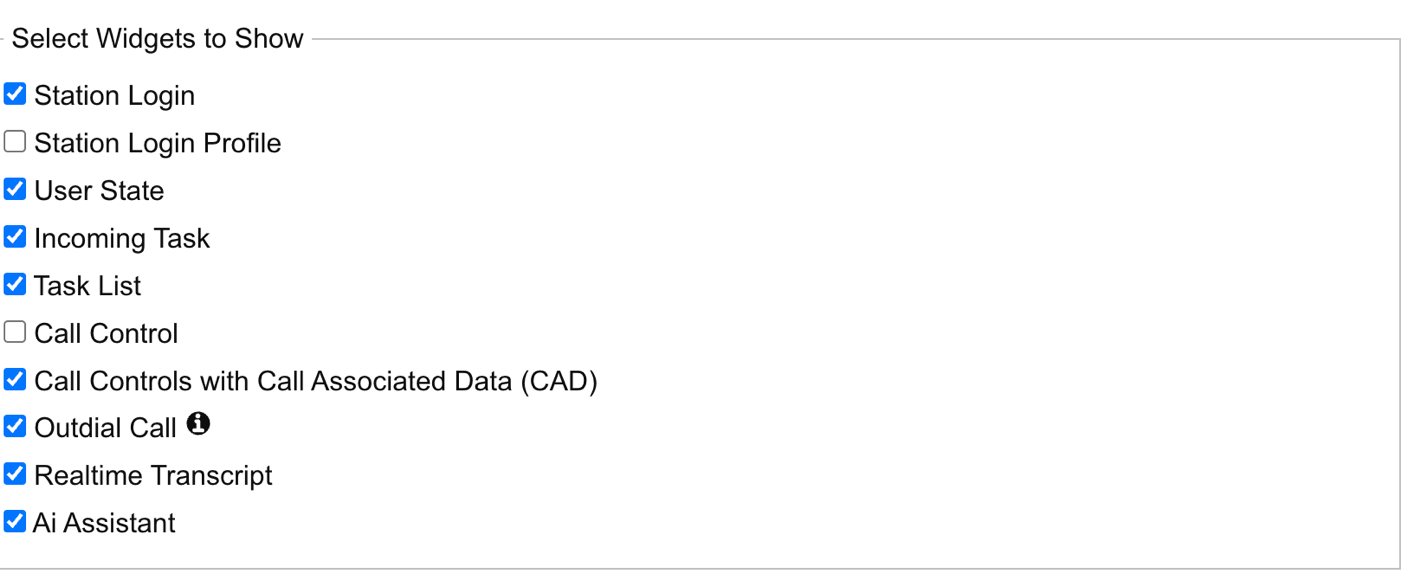
Use the Station Login widget to sign in, and then change the agent state to Available.
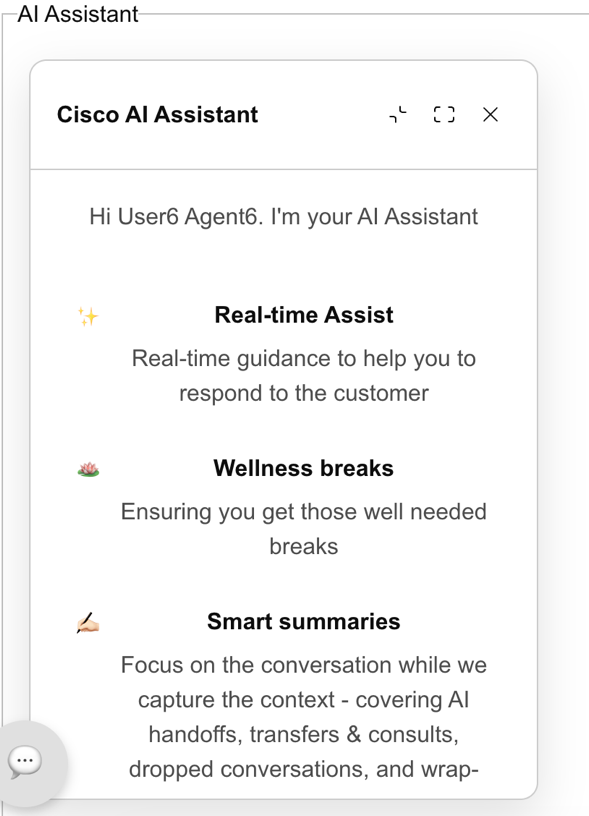
Open Cisco AI Assistant before an eligible interaction is active. Confirm that the landing experience appears and that no suggested response is displayed.
Start and accept an incoming voice interaction. Keep the interaction active while you test several responses.
Open Cisco AI Assistant during the active interaction. Confirm that Get Assistance appears.
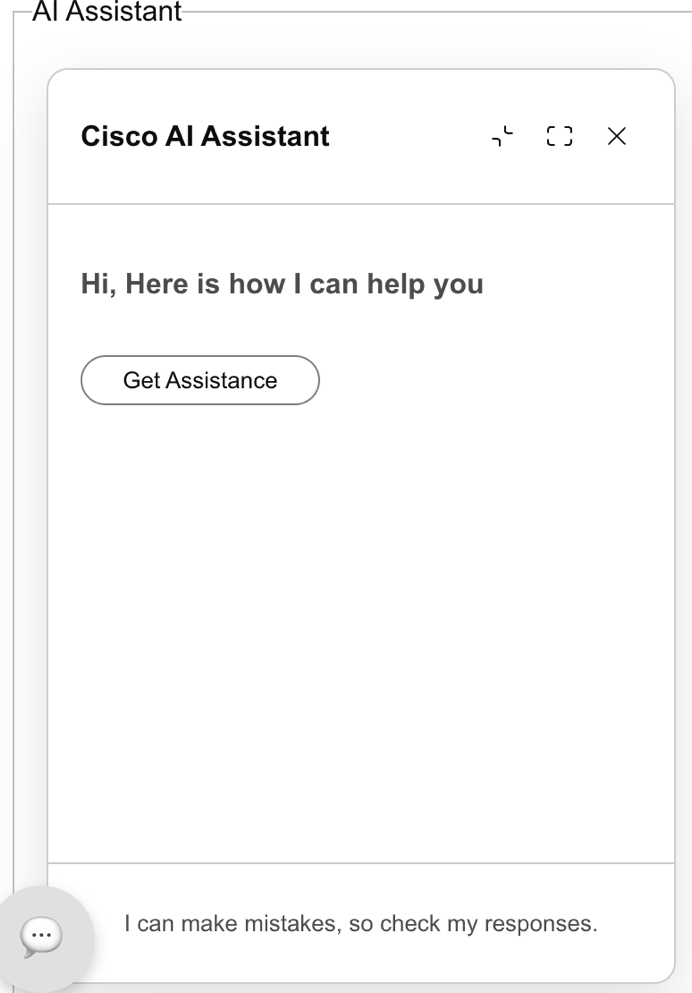
Select Get Assistance. Confirm that the request shows progress and the panel changes to the Listening state.
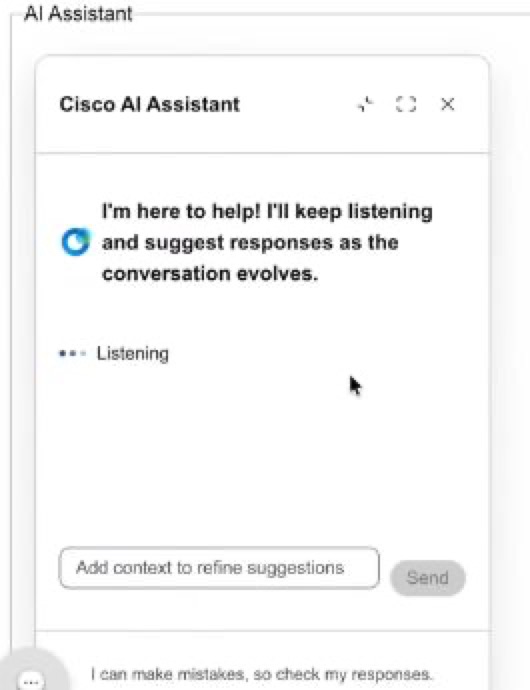
Continue the interaction until one or more suggested response cards appear. Confirm that the cards are ordered chronologically and contain understandable, relevant responses for the current interaction.
Use Add context to provide information for the next response, submit the context, and continue the interaction.
Select copy, like, and dislike on a response. Confirm that each control responds without a UI error.
Minimize and restore the panel, toggle full-screen mode, and close the panel. Confirm that the panel remains usable and that the host layout responds correctly.
End the interaction. Start a different interaction, if available, and confirm that content from the previous customer is not displayed in the new session.
The setup is ready when the widget receives responses for the active interaction, all three response actions work, and content from one interaction does not appear in the next.
anchorAdd the widget to a React application
anchorImport the AI Assistant widget. Your application should already initialize the shared Contact Center store as described in the Quickstart; do not initialize a second store for this widget.
import {AIAssistant} from '@webex/cc-widgets';
The widget reads the current agent, task, feature configuration, and Real Time Assist responses from the shared store. It also sends the request and feedback actions; your host application does not need to call the Real Time Assist SDK methods separately.
Add the widget to your component. All callbacks are optional; use the ones your host application needs.
import {useState} from 'react';
import {AIAssistant} from '@webex/cc-widgets';

const [isAIAssistantFullScreen, setIsAIAssistantFullScreen] = useState(false);

<AIAssistant
  className={isAIAssistantFullScreen ? 'ai-assistant--host-full' : undefined}
  onOpen={() => console.log('AI Assistant opened')}
  onMinimize={() => console.log('AI Assistant minimized')}
  onRestore={() => console.log('AI Assistant restored')}
  onClose={() => setIsAIAssistantFullScreen(false)}
  onFullScreenToggle={(isFullScreen) => setIsAIAssistantFullScreen(isFullScreen)}
  onRealTimeAssistReceived={(payload) => console.log('Real Time Assist response', payload)}
/>
onRealTimeAssistReceived is an optional notification callback. The widget renders the response itself; use the callback only when your host application needs to log or react to a new response.
The widget reports full-screen changes through onFullScreenToggle, but it does not resize the host layout. Your application must apply the corresponding layout or CSS.
anchorAdd the widget as a web component
anchorTo use the AI Assistant widget without rendering it as a React component, import the web-component entry point. This registers the widget-cc-ai-assistant custom element and exports the same shared store used by the React components.
import {store} from '@webex/cc-widgets/wc';

await store.init({
  webexConfig,
  access_token: accessToken,
});

const aiAssistant = document.createElement('widget-cc-ai-assistant');

aiAssistant.onOpen = () => console.log('AI Assistant opened');
aiAssistant.onFullScreenToggle = (isFullScreen) => {
  console.log('AI Assistant full-screen state:', isFullScreen);
};
aiAssistant.onRealTimeAssistReceived = (payload) => {
  console.log('Real Time Assist response:', payload);
};

document.body.appendChild(aiAssistant);
Use the webexConfig and accessToken values from the Quickstart. If another Contact Center widget has already initialized store, do not call store.init() again. Complete station login before testing the custom element.
anchorValidate the integration
anchorTest the React component or web component during an active voice interaction and verify that:
- Get Assistance changes to the listening experience without an error.
- Suggested responses appear for the current interaction in chronological order.
- Adding context results in a subsequent response for the current interaction.
- Copy, like, and dislike controls respond without a UI error.
- Minimize, restore, full-screen, and close actions work with the host layout.
onRealTimeAssistReceivedruns for each new response when the callback is supplied.- Ending the interaction clears its content, and a new interaction does not show content from the previous customer.
anchorTroubleshoot the test
anchorAIAssistantis missing from the package: Confirm that your dependency version includes the component, then reinstall dependencies.- The widget says the feature is unavailable: Confirm the organization's AI Assistant entitlement and verify that Real Time Assist is enabled for the agent.
- The panel opens but no responses arrive: Confirm that the shared store contains the current agent and active voice task. Then repeat the sample-application test to separate configuration problems from host-application problems.
- Full-screen mode does not change the layout: Handle
onFullScreenToggleand apply the full-screen layout in the host application. - A previous customer's content appears: Confirm that the host does not retain or restore widget state from the completed interaction.