Android SDK Behavior Changes and Migration (v3.16+)
December 10, 2025

We're excited to announce the release of Mobile SDK version 3.16.0v, bringing with it important updates and enhancements for your Android applications. This release focuses on improving compatibility, flexibility, and compliance with the latest Android platform guidelines. While some changes are seamless, others require your attention for a smooth migration.
This guide will walk you through two significant behavior updates introduced in the Android SDK (now available on the GitHub repo) and provide clear instructions on how to migrate your apps:
- Support for 16 KB memory page size (Google-recommended platform change)
- App-owned runtime permission handling (SDK no longer prompts)
Both of these are intentional behavior changes. The 16 KB memory page size work is designed to be non-breaking for existing applications, requiring minimal effort on your part. However, the new permission model is a breaking change that necessitates specific updates to your app's code and manifest to ensure continued functionality. Let's dive into the details of each.
1. 16 KB memory page size (what, why, and what changed)
What is the 16 KB page-size recommendation?
Newer Android devices and toolchains are increasingly adopting a default memory page size of 16 KB on arm64 architectures. Google has made this a crucial Play Store compatibility requirement: starting November 1, 2025, all new apps and updates targeting Android 15+ devices must fully support 16 KB page sizes on 64-bit devices. For more detailed guidance, refer to Google's official documentation: Google: Support 16 KB page sizes.
What we changed in the SDK
To ensure your applications remain compliant and perform optimally, we've made the following adjustments within the Webex Mobile SDK:
- We've updated native components and packaging to be fully compatible with 16 KB memory pages, including proper ELF alignment, toolchain flags, and mapping behavior.
- We've thoroughly ensured that the SDK runs correctly on devices utilizing 16 KB pages without requiring any app-side code changes from you.
Migration impact for apps
The good news here is that no app code changes are required for this particular update. Simply updating to this latest SDK version is sufficient to gain 16 KB page size compatibility.
- Validation tip: To verify this on a test device or emulator, you can use
adb shell getconf PAGE_SIZE. It should return16384when running with 16 KB pages (as described in the Google doc linked above).
2. App-owned permission flow (breaking change)
This is a significant update that provides greater control and flexibility to app developers. Previously, the SDK handled certain aspects of permission management, but with 3.16.0v, this responsibility shifts entirely to the application.
What changed
- Manifest Declarations: The SDK no longer includes dangerous permissions in its library manifest. Applications must now explicitly declare all necessary permissions in their own
AndroidManifest.xml. - Runtime Requests: The SDK will no longer prompt users for system permissions. It is now the application's responsibility to request these permissions at runtime.
- Preflight Checks: The SDK will perform preflight checks. If required permissions are missing, it will report this via
WebexError.ErrorCode.PERMISSION_REQUIRED, providing a list of the missing permissions inerror.data. - Screen Sharing Consent: There is also a change in how user consent for screen sharing is obtained, moving towards an app-driven approach.
Why we changed it
This shift to app-owned permission handling offers several key advantages for developers:
- Flexibility: It allows apps to adopt the latest Android UX patterns for permission prompts, enabling custom UI flows that integrate seamlessly with your app's design.
- Independence: This change reduces app coupling to SDK releases, making your application less susceptible to changes when Google updates its permission policies.
- Store Compliance: Apps gain better control over which permissions are declared per build flavor, helping to minimize Play Console warnings related to dangerous or sensitive permissions.
Why it’s a breaking change
This update is classified as a breaking change because:
- Apps that previously relied on the SDK to display permission dialogs will now receive
PERMISSION_REQUIREDerrors instead of the expected pop-ups. - Migration is required. You will need to add explicit manifest declarations, implement runtime permission requests, and include logic to retry SDK calls after permissions have been granted by the user.
Migration Guide (step by step)
To help you seamlessly transition to the new permission model, follow these step-by-step instructions.
A. Manifest preparation (app-side)
It's crucial to declare only the permissions your app truly needs for its specific features or build flavors. This minimizes unnecessary permission requests and improves user trust. Here are some common examples:
RECORD_AUDIO(for audio functionality)CAMERA(for video functionality)MODIFY_AUDIO_SETTINGS(required for audio routing, such as switching between speaker, Bluetooth, or earpiece)BLUETOOTH_CONNECTon API 31+ (for Bluetooth route toggling; use legacyBLUETOOTHfor older Android versions)READ_PHONE_STATE(an optional optimization, as detailed below)- Note that there is no runtime string for screen share consent (MediaProjection). If your user experience requires overlays (e.g., for annotations),
SYSTEM_ALERT_WINDOWwill be needed.
B. Common runtime request utility
We recommend creating a small helper utility to check for and request permissions before invoking SDK APIs. This promotes cleaner code and consistent handling.
val required = listOf(Manifest.permission.RECORD_AUDIO)
val missing = required.filter { ContextCompat.checkSelfPermission(ctx, it) != PackageManager.PERMISSION_GRANTED }
if (missing.isNotEmpty()) {
    // requestPermissions(missing.toTypedArray(), REQ_CODE) // Implement your permission request logic here
    return
}
If an SDK call returns a PERMISSION_REQUIRED error, inspect error.data to identify the list of missing permissions. You should then request these permissions from the user and retry the original SDK call once they are granted.
C. Use-case recipes
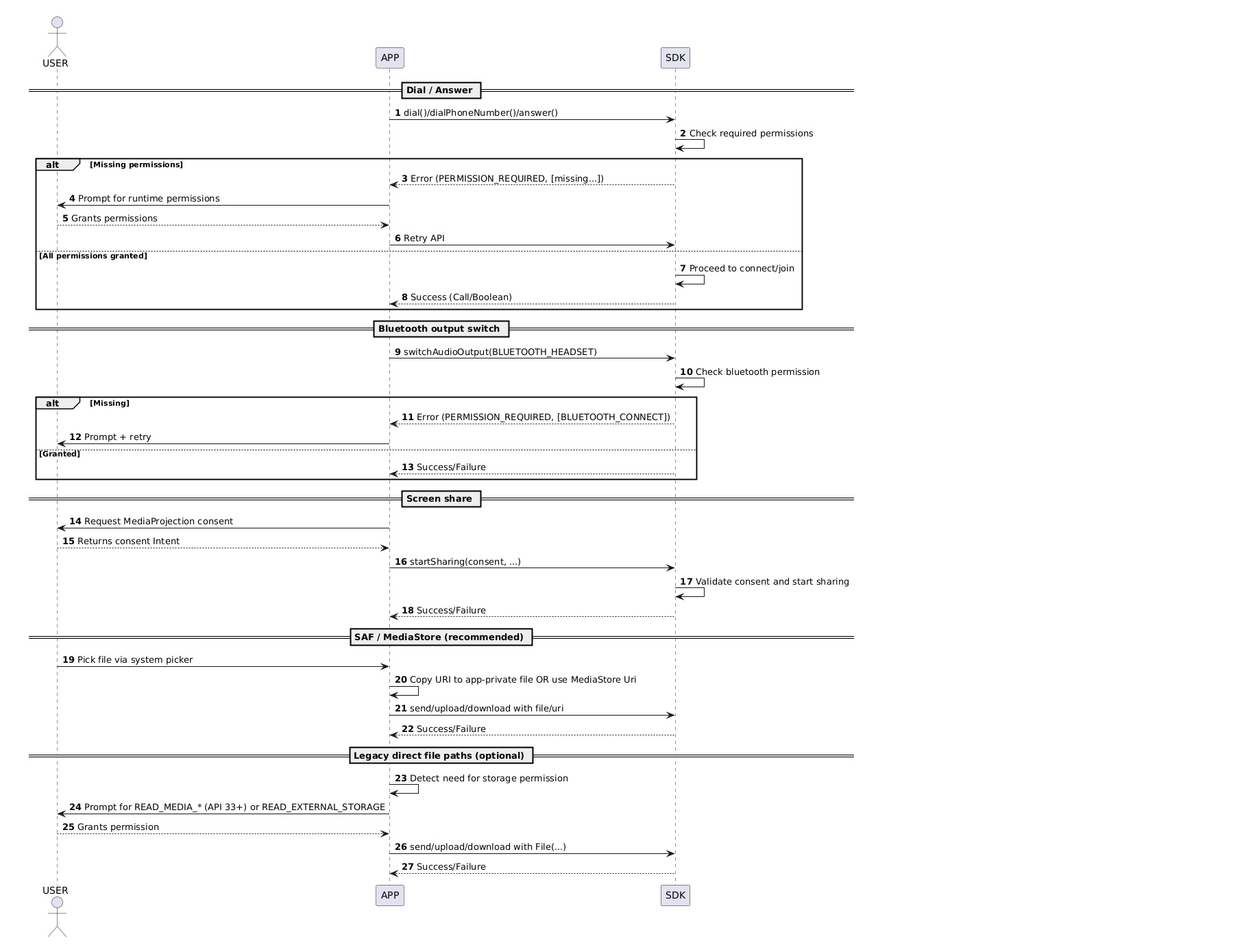
Let's look at specific use cases and the permissions they require.
1. Audio-only calling (Webex Call/meetings)
- Permissions:
RECORD_AUDIO - Flow:
- Check for and request microphone permission if not already granted.
- Proceed to call
webex.phone.dial(...)(oranswer(...)). - If
PERMISSION_REQUIREDis returned, prompt the user for the missing permission and retry the call.
val mic = Manifest.permission.RECORD_AUDIO
if (ContextCompat.checkSelfPermission(ctx, mic) != PackageManager.PERMISSION_GRANTED) {
    // requestPermissions(arrayOf(mic), REQ_MIC) // Request microphone permission
    return
}
webex.phone.dial(address, MediaOption.audioOnly()) { result -> /* handle call result */ }
Important: RECORD_AUDIO is a runtime (dangerous) permission. You must always prompt the user for this permission at runtime on Android 6 (API 23) and higher.
Manifest entries:
<uses-permission android:name="android.permission.RECORD_AUDIO" />
2. Audio + Video calling
- Permissions:
RECORD_AUDIO,CAMERA(plus optionalREAD_PHONE_STATEif enabled in your app) - Flow: Request both
RECORD_AUDIOandCAMERApermissions before attempting to dial or answer a video call.
val needed = arrayOf(Manifest.permission.RECORD_AUDIO, Manifest.permission.CAMERA)
// request if missing ... then
webex.phone.dial(address, MediaOption.audioVideo(/* views */)) { result -> /* handle call result */ }
Manifest entries:
<uses-permission android:name="android.permission.RECORD_AUDIO" />
<uses-permission android:name="android.permission.CAMERA" />
3. Screen sharing (MediaProjection consent handoff)
- Permissions: No direct runtime permission string is required for MediaProjection itself; instead, you must obtain a consent intent.
- Flow:
- Launch the screen capture intent using
MediaProjectionManager#createScreenCaptureIntent(). - Upon successful user consent, pass the returned
data: Intenttocall.startSharing(consentData, ...)and proceed with the screen sharing operation. - If your UX includes overlays (e.g., for annotations), you must check
Settings.canDrawOverlays(...)and, if necessary, guide the user to grant this permission in their device settings.
- Launch the screen capture intent using
val mgr = ctx.getSystemService(Context.MEDIA_PROJECTION_SERVICE) as MediaProjectionManager
val consentIntent = mgr.createScreenCaptureIntent()
launcher.launch(consentIntent)
// onActivityResult / ActivityResult callback:
call.startSharing(notification, notifId, data /* consent */, callback, shareConfig)
Manifest entries:
<!-- No runtime permission string for MediaProjection consent -->
<!-- If your UX includes overlays (e.g., annotations), and you actually present them: -->
<uses-permission android:name="android.permission.SYSTEM_ALERT_WINDOW" />
4. Audio routing (speaker, Bluetooth, earpiece)
- Permissions:
MODIFY_AUDIO_SETTINGS(required for all audio routing operations – this is a normal permission)BLUETOOTH_CONNECTon API 31+ for Bluetooth headset toggling (this is a dangerous permission)- Legacy
BLUETOOTHfor older Android versions (if supporting them)
- Flow: Declare
MODIFY_AUDIO_SETTINGSin your manifest. Request Bluetooth permission at runtime if your app uses Bluetooth audio routing. Then, callcall.switchAudioOutput(...).
Important: Without MODIFY_AUDIO_SETTINGS declared in your manifest, attempts to toggle to speaker mode or any other audio route will fail, potentially resulting in no audio during calls.
// Switch to speaker (only needs MODIFY_AUDIO_SETTINGS in manifest)
call.switchAudioOutput(Call.AudioOutputMode.SPEAKER) { result ->
    if (result.isSuccessful) {
        // Audio routed to speaker
    }
}
// Switch to Bluetooth (needs MODIFY_AUDIO_SETTINGS + runtime Bluetooth permission)
val bt = if (Build.VERSION.SDK_INT >= 31) Manifest.permission.BLUETOOTH_CONNECT else Manifest.permission.BLUETOOTH
if (ContextCompat.checkSelfPermission(ctx, bt) == PackageManager.PERMISSION_GRANTED) {
    call.switchAudioOutput(Call.AudioOutputMode.BLUETOOTH_HEADSET) { /* handle result */ }
} else {
    // Request Bluetooth permission at runtime
}
// Switch to earpiece/phone
call.switchAudioOutput(Call.AudioOutputMode.PHONE) { /* handle result */ }
Manifest entries:
<!-- Required for ALL audio routing operations (normal permission - no runtime request needed) -->
<uses-permission android:name="android.permission.MODIFY_AUDIO_SETTINGS" />
<!-- Only if your app uses Bluetooth audio routing -->
<!-- API 31+ -->
<uses-permission android:name="android.permission.BLUETOOTH_CONNECT" />
<!-- Legacy (if supporting older targets) -->
<uses-permission android:name="android.permission.BLUETOOTH" />
Note: MODIFY_AUDIO_SETTINGS is a normal permission, meaning it only requires manifest declaration and does not need a runtime request. However, BLUETOOTH_CONNECT is a dangerous permission on API 31+ and does require a runtime request.
5. Optional: READ_PHONE_STATE
- Some applications utilize
READ_PHONE_STATEto enhance the call experience on specific devices or carriers. This permission should be considered optional—request it only if your app genuinely benefits from its functionality.
Example (only request if you need it):
val phoneState = Manifest.permission.READ_PHONE_STATE
val isGranted = ContextCompat.checkSelfPermission(ctx, phoneState) == PackageManager.PERMISSION_GRANTED
if (!isGranted) {
    // requestPermissions(arrayOf(phoneState), REQ_READ_PHONE_STATE) // Request permission
}
SDK toggle:
- You can control the SDK's behavior regarding this permission with
Phone.enableAskingReadPhoneStatePermission(enable: Boolean). - The default setting is
true. When your target SDK is 30 or higher, this permission helps the SDK check network state, allowing it to auto-tune performance during calls.
// If your app does not benefit from READ_PHONE_STATE, you can opt out
webex.phone.enableAskingReadPhoneStatePermission(false)
Manifest entries:
<uses-permission android:name="android.permission.READ_PHONE_STATE" />
D. Handling SDK errors consistently
- If the SDK's preflight checks detect missing permissions, you will receive a
PERMISSION_REQUIREDerror, with a detailed list of the missing permissions provided inerror.data. - Your application should then prompt the user to grant these permissions via your UI, and subsequently retry the exact API call that failed.
- To avoid a confusing user experience, ensure that your app's UI and the SDK's preflight checks are aligned. You should prevent scenarios where the app displays a "missing permission" toast while allowing a separate flow to proceed, as this can lead to a confusing and broken user experience.
E. Flavor-level control for Play Store compliance
- To optimize for Play Store compliance and reduce warnings, consider splitting your permission declarations by product flavor or module. This allows you to declare only the permissions that each specific build variant truly requires.
- This approach helps in minimizing Play Console warnings associated with unused dangerous permissions, contributing to a smoother app submission process.
FAQ
We've compiled answers to some common questions you might have about these changes.
Does the SDK still show permission dialogs?
No. With this release, all permission prompts are now app-owned. The SDK's role is to validate permissions and report PERMISSION_REQUIRED errors when they are missing.
Do I need to change anything for 16 KB page size?
No. For 16 KB page size support, simply updating to this SDK version is sufficient. No code changes are required on your part.
Can the SDK return an error and still connect?
No, not for the same operation. If a preflight check for permissions fails, the intended call or operation will not be executed. It's crucial to ensure your app's UI does not display an unrelated permission toast while allowing a separate flow to proceed, as this can lead to a confusing and broken user experience.
Conclusion
This release of the Webex Mobile SDK 3.16.0v marks an important step towards greater platform compatibility and developer flexibility. While the 16 KB memory page size support is a straightforward update, the transition to app-owned permission handling is a breaking change that requires careful migration. By following the detailed steps outlined in this guide, you can ensure your applications remain compliant with Google's latest requirements, provide a robust user experience, and leverage the full power of the Webex SDK. We encourage you to update your applications, thoroughly test the new permission flows, and enjoy the enhanced control this release provides. As always, the Webex Developer Support Team is happy to help with any issues or questions. You can also start or join a conversation about this topic on the Webex for Developers Community Forum.