Simplify MCP Authentication with Webex Service Apps
October 31, 2026

An AI agent needs an authorized connection before it can use Webex tools. Webex Service App authentication gives eligible Webex-hosted MCP servers an organization-level identity, with access approved by a Full Administrator in Control Hub. During setup, developers and administrators do not need to enter a client ID, client secret, or access token.
Here is how the Developer Portal and Control Hub fit together, and what to check before you start using an enabled tool.
An identity for your organization's workflows
Some automations need to operate on behalf of an organization. Think of an assistant that retrieves approved operational information for a support workflow, rather than relying on one employee to keep the connection authorized.
Webex Service Apps support that model through a machine identity in the authorizing organization. The associated permissions come from the Service App's authorization and scopes. This does not give an agent unrestricted access to Webex data: the requested scopes and the requirements of each API still matter.
For MCP, the Developer Portal brings this authentication choice into agentic app configuration. It is available for eligible Webex-hosted MCP servers. Check the options offered for your server's URL when registering or editing the app.
Configure the agentic app in the Developer Portal
Start with the MCP server onboarding guide. In the agentic app registration form:
- Enter the eligible Webex-hosted MCP server URL and the app's other required details.
- Select Webex Service App from the available authentication methods. The option appears after an eligible URL is entered.
- Complete registration. After provisioning succeeds, the details page displays the Associated Webex Service App ID.

Select Webex Service App when configuring an eligible MCP server in the Developer Portal.
That association connects the MCP app configuration to the Service App that an administrator will authorize. Each customer organization must grant its own authorization.
Review and authorize in Control Hub
A Full Administrator completes the organization setup:
- Open Apps > Agentic Apps and select the MCP server.
- Review the app's access policy and enable the tools your organization needs.
- On Authentication, select Webex Service App as the active method.
- Follow the associated Service Apps page link.
- Review the Service App and its requested scopes, then authorize it and save.
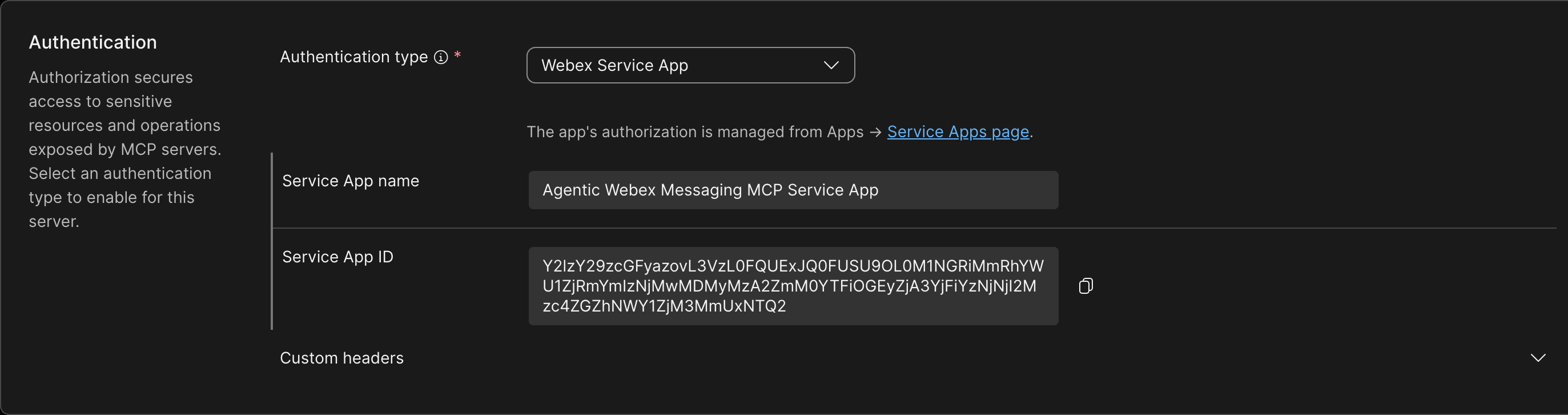
Control Hub identifies the associated Service App and links to its authorization page.
Selecting the authentication method and allowing the agentic app do not complete the Service App grant. The Full Admin authorization is a separate step.
The Control Hub provisioning guide covers the authentication settings, and the Service Apps guide explains the administrator's authorization flow.
Make the first test small
Once configuration and authorization are complete, test an enabled read-only tool through a client that supports your intended authentication flow. Choose a request with a small, predictable result before trying a larger workflow.
For example, a Contact Center flow assistant could start by retrieving the definition of one activity, such as Play Message. A successful test should show both the tool invocation and its returned result. That gives you a clearer check than a connected status or a conversational response alone.
Use that first result to confirm the target organization and the operation the app can perform. Then expand the test to the rest of your workflow.
Keep authorization aligned with the app
The initial approval is only part of the lifecycle. If the Service App's requested scopes change, a Full Administrator must review and reauthorize them. Control Hub indicates when this review is required.
Continue reviewing tool availability separately. Enabling a tool controls whether it is available through the agentic app; the Service App grant controls its authorized API access. Both settings need to match the workflow you intend to run.
Get started
Choose an eligible Webex-hosted MCP server and follow the onboarding guide. Then ask your Full Administrator to complete Service App authorization in Control Hub.
Start with one useful tool and a small test. You can build from there with an organization-level identity and a clear administrator approval flow.