Introducing Group-Level Access for Webex MCP Servers
October 13, 2026

Administrators can now configure group-level access for Webex MCP servers connected to external AI agents and clients, such as Claude Desktop, Cursor, and VS Code. In Webex Control Hub, Limited access lets you choose which groups discover a server's enabled functions, with one shared audience for all functions or different groups for individual tools, resources, and prompts.
For connection setup and authentication, follow Connect Webex MCP Servers to External Clients.
Different teams need different capabilities. A support team might need to discover functions from the Webex Contact Center MCP server in its AI client, while a pilot group evaluates a new connection. Group-level access lets administrators introduce those capabilities to a smaller audience and expand the audience as the rollout progresses.
Start with a shared audience
Choose Same groups for all functions when the same team should discover every enabled function in a server. For example, you could select Support Team and Pilot Users for an initial rollout.
- Sign in to Webex Control Hub and go to Apps > Agentic Apps.
- Select the MCP server and open General.
- Under Access, select Limited access, then Same groups for all functions.
- Open Search groups, select the groups, and select Save.
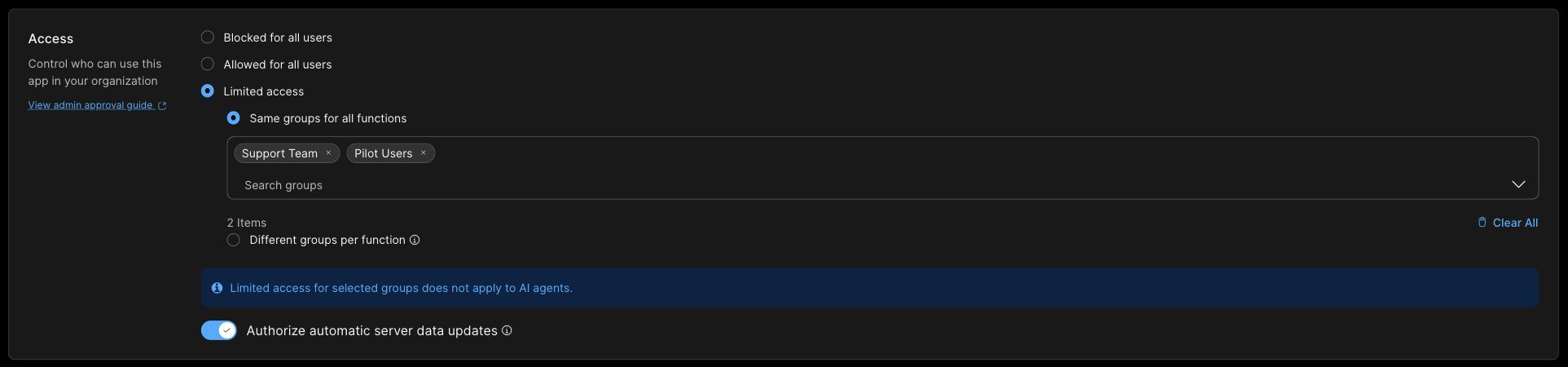
The groups must already exist in your organization. You can create them under Management > Groups in Control Hub. Keep their membership current as people join or leave the rollout.
Give individual functions different audiences
Choose Different groups per function when functions need separate audiences. You might assign a lookup function to a support team and a configuration function to a smaller pilot group. Each function has its own group selection.
On the server's General tab, select Limited access, choose Different groups per function, and select Save.

Open Tools, Resources, or Prompts. Find the function you want to configure and select Edit in its Group access column. The Tools tab below shows where to configure List Flows.
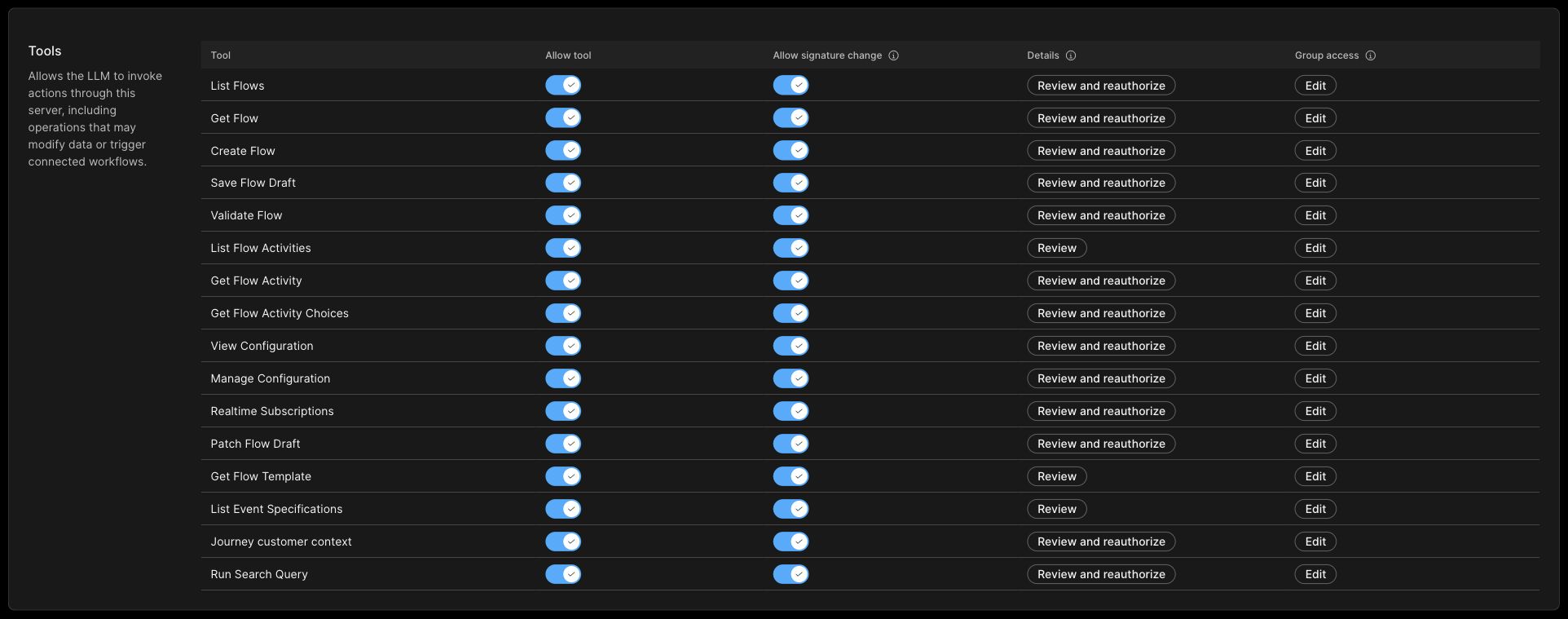
On Edit group access, select the groups in Search groups, then select Save. Repeat for each enabled function you want users to discover. The example below shows Support Team selected for List Flows; Pilot Users is another available group.
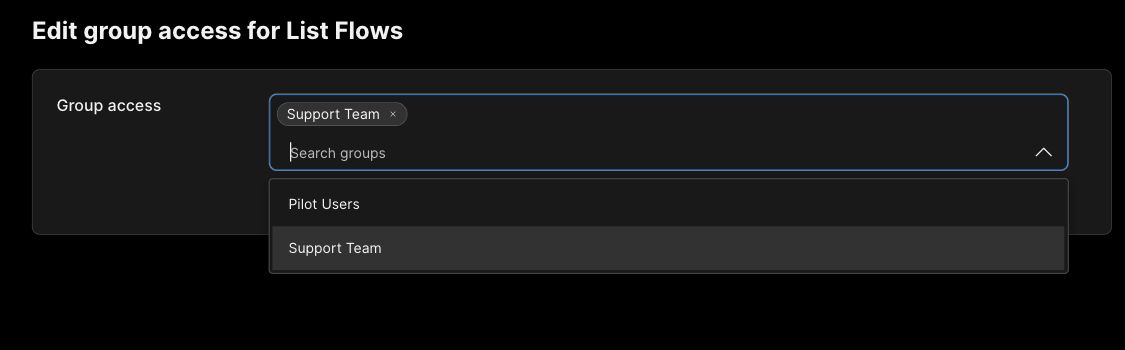
In this mode, a user must belong to at least one group assigned to a function to discover it. An enabled function with no assigned groups has no matching users. Saving an empty selection removes the function from group-based discovery.
Check the rollout
After saving, reopen General to confirm the access mode. For per-function assignments, return to the function's Edit screen on Tools, Resources, or Prompts and check its saved groups.
Group assignment controls discovery of enabled functions. It does not enable a disabled function, and the MCP server's own authentication and authorization controls still apply when a function is invoked.
MCP actions in Webex AI Agent Studio continue to use organization-level access. Group-level access is not supported for those actions.
Follow the Provisioning on Control Hub guide for the full configuration steps, authentication options, and capability settings. Use the Admin Approval Guide for Agentic Apps to review the server before enabling it for your organization.